Trillium Updates: Switching from Macbook to Mini PC for Self-hosting
My MacBook kept falling asleep, and the clock inside my Docker container drifted until Trillium missed a week of task runs. This post covers the move to a Debian mini PC, and what I learned about partitioning, SSH lockdown, and running Podman containers as systemd services.

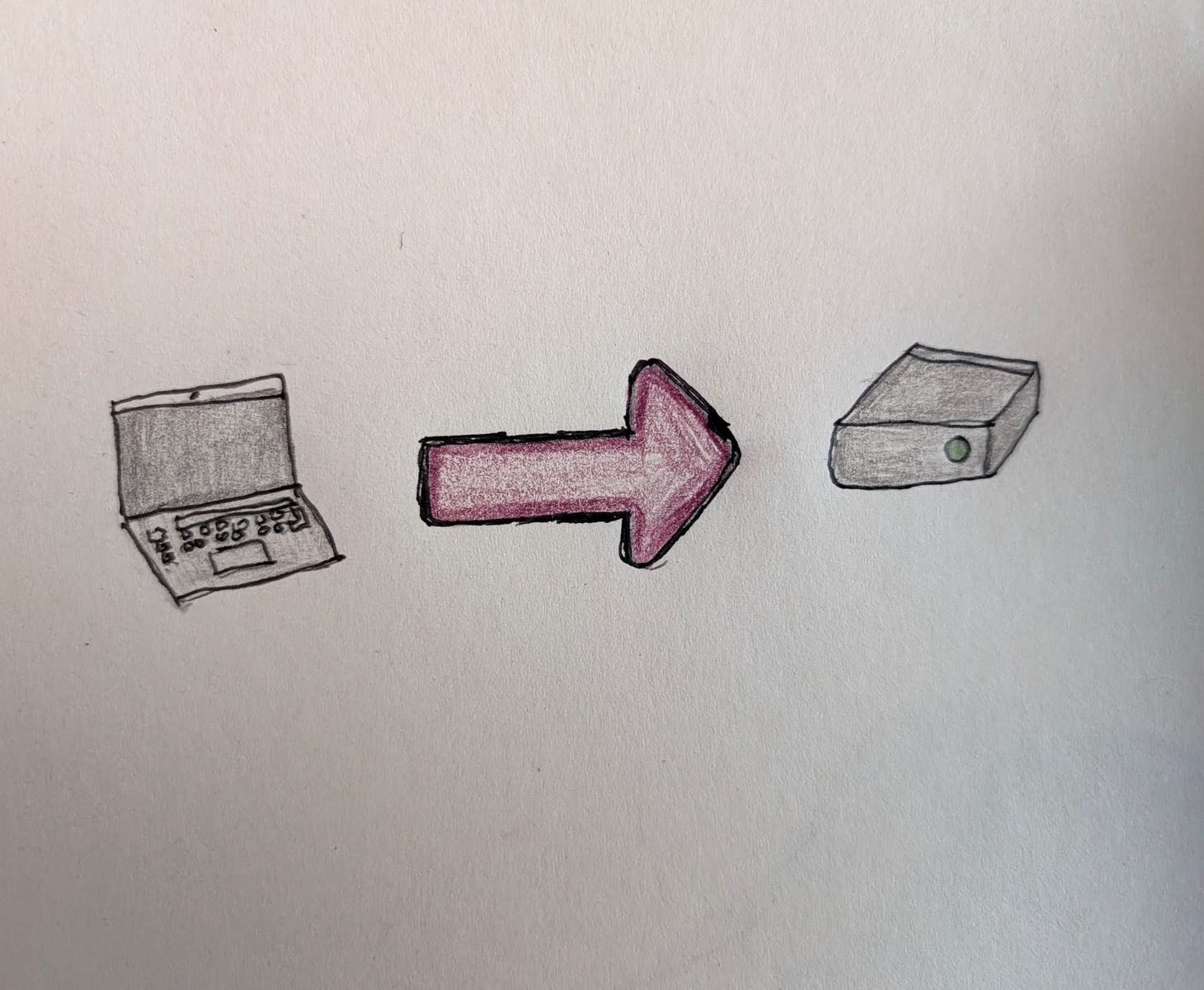
I had to concede defeat a few months ago on the idea of self-hosting my project on my Macbook, and transition to a mini PC that runs a Debian installation instead.
The problems that I ran into that led to this change:
1) The laptop would go to sleep, even if the laptop was configured to stay awake when plugged into the battery.
There were more extreme options I might have been able to leverage (like caffeinate), but I was concerned that that might mess with the machine in a way that could eventually brick it or cause safety problems with respect to the battery.
2) The clock within the VM of the docker container running Trillium would drift when the machine was asleep.
This clock controlled the task runs to fetch new bills and, at the end of the week, generate the newsletter. The clock appeared to not recover in the intermittent periods when the laptop "wakes up", resulting in significant clock drift and missed task runs.
I only became aware of the missed runs when my Sentry monitors for it failed for a week straight. I had ignored the first alert because when I followed up on the monitor the first couple of times it happened, the task eventually ended up running. So I did what any time-constrained individual does and delayed looking into a proper fix until I had a few hours to sit down and figure it out.
Fast forward to getting pinged about it not running for a week. Fortunately, the Ontario Legislature was on recess for the summer so not much was happening at the time, but I needed to get this fixed before they returned.
Moving over to a mini PC - installing Debian
Step 1: Creating a bootable USB flash drive
I couldn't remember the last time I created a bootable USB flash drive for this purpose (maybe high school?) so I did some research into what tools were available these days to help with this.
The Debian documentation suggested Rufus, but it looked to be for Windows only. Poking through Reddit led me to discover that Raspberry Pi's Imager can be used for creating bootable USB drives, not just bootable microSD cards (which is the only example they give on the landing page for the tool).
This tool was a cinch to use, and it took me no time at all once I had it installed.
Step 2: Partitioning the drive and installing Debian
Even though I had a friend who very kindly and patiently answered my half-a-million questions through the process, my palms were still sweating probably 70% of the time out of fear that I would do something horribly wrong and completely brick the PC.
Sone of my questions when partitioning the drive prior to installing Debian - how much space should each partition take? What types of partitions do I need? WTF is "extended drive 4"??
Below is what I ended up with at the end for the most part except for the partition type of /boot - this turned out to be incorrect and needed to be an EFI partition:
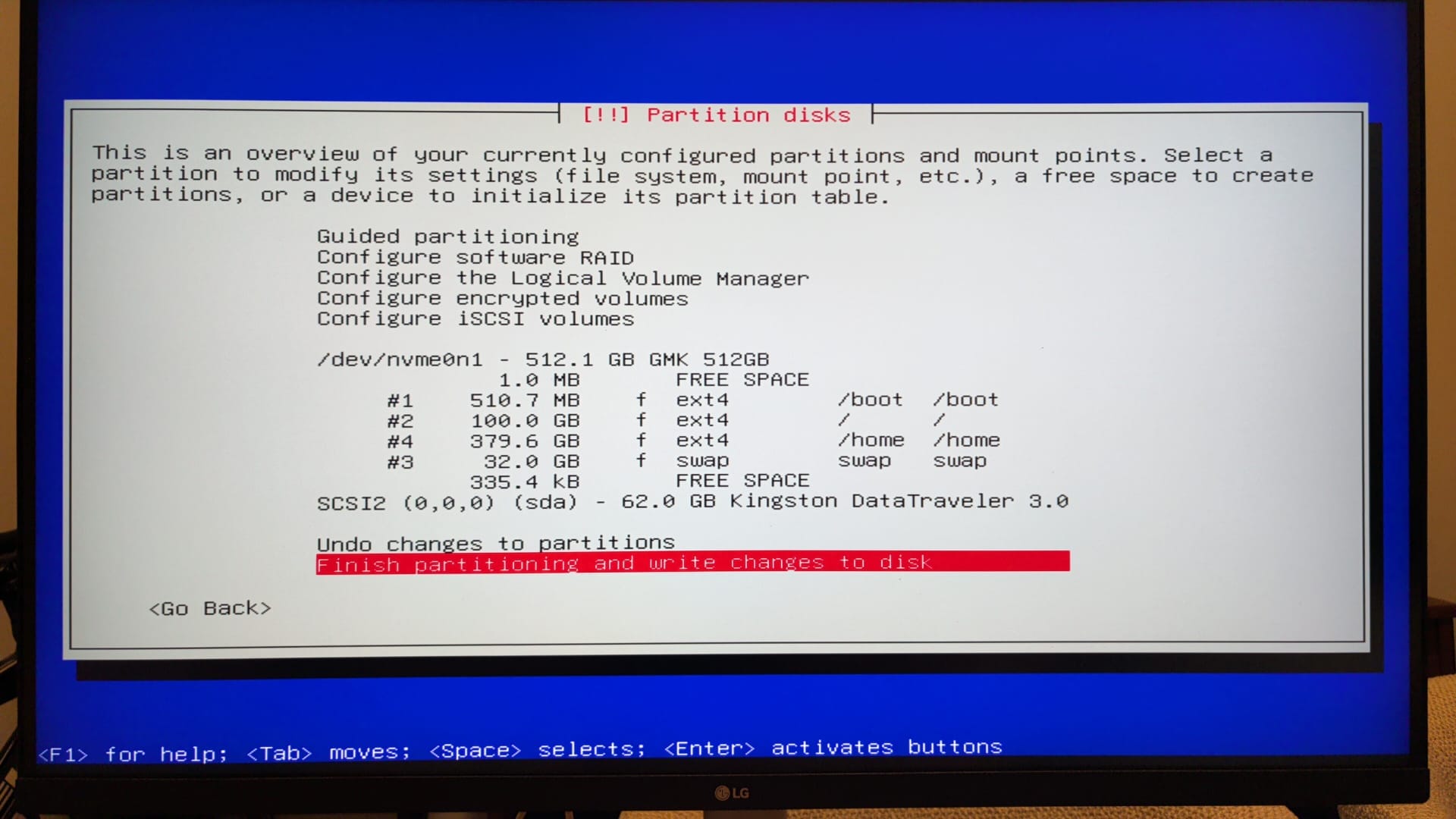
/boot shouldn't be ext4, should be an EFI partition typeI wish I could recall the phone call I had with my friend that led to this breakdown to share with everyone (this is what I get for taking so long to write this post), particularly the reasoning behind why the partition sizes are what they are, but to quickly summarize what I do recall and what I have notes on:
swap allows you to extend the virtual memory available to a machine beyond what's available in RAM. You can read a bit more about it here.
/boot is where files needed to boot the kernel live.
/home was always going to be the biggest as this is essentially the main drive where all my files, applications, etc. are going to go.
/ is where the OS lives. If I recall correctly, I think having this as a separate partition from /home is what enables me change OSes should I want to without risking losing my data.
Once that was done, I was in!
Other things I learned along the way
Minimizing software bloat by turning off recommended installs
You can do this for a Debian installation by adding the following to /etc/apt/apt.conf.d/ :
APT::Install-Recommends "false";
APT::Install-Suggests "false";
Preventing root access from inbound connections to keep things locked down
There's a PermitRootLogin setting that can be toggled in /etc/ssh/sshd_config :
PermitRootLogin no
which, as the name suggests, disallows root access for someone trying to ssh in from somewhere else.
Podman containers can be set up as systemd services
Using Quadlet, I was able to define and use .container files to build and run Trillium.
Having these containers as systemd services has the benefit of:
- the containers starting automatically when the machine boots up without needing my intervention (good in case of a power outage); and
- being run as an unprivileged user.

Erica Pisani Newsletter
Join the newsletter to receive the latest updates in your inbox.


